Apps & ToolsWhat To Do If X Failed
A Flatpak Application Cannot See Your Files: How the Permissions Actually Work
The narrow permission for the common cases instead of a blanket home-directory override
On this page
Flatpak's security model deliberately isolates your sandboxed apps from your filesystems. By default, an app has only the permissions you manually grant or the specific access you grant through a Flatpak portal. Most of the time, Flatpak apps access your files through dialogs instead of relying on raw filesystem access.
Sandboxed by default
Flatpak enforces a security model where each app runs in a isolated sandbox with automatic permissions set so that app files and data don't cross over with other apps. It restricts apps' filesystem access by default, and providing full unrestricted access to an app's home directory requires explicit user approval. An app in a Flatpak sandbox is unable to access any filesystem other than a few specific locations without additional user intervention.
The official Flatpak documentation (https://docs.flatpak.org/en/latest/sandbox-permissions.html) last updated 2026-08-24 provides the reason for isolating apps, "...to ensure that an app cannot access the home directory or other files outside of the sandbox." Flatpak's sandboxed environment forces apps to get user approval for each filesystem location they want access to, including the home directory.
The recommended path for allowing file access to Flatpak apps is through configuration extras or portals, which give the app a finely tuned set of permissions. The File Chooser portal handles file and directory access requests from the sandboxed app, while still preserving the security boundaries of the sandbox environment. When users select files in a file chooser dialog, Flatpak grants that app approval to access those files automatically, and users don't need to manually change filesystem permissions.
What Flatpak shares without a blanket override
There are several parts of your filesystem that an app in a Flatpak sandbox does have permission to access by default, though:
- Your home directory, but not the subdirectory
~/.var/app - Paths to specific categories of user directories: Documents, Downloads, Music, Pictures, and Public Share
- Other XDG directories or
$HOMEas a fallback if XDG isn't available
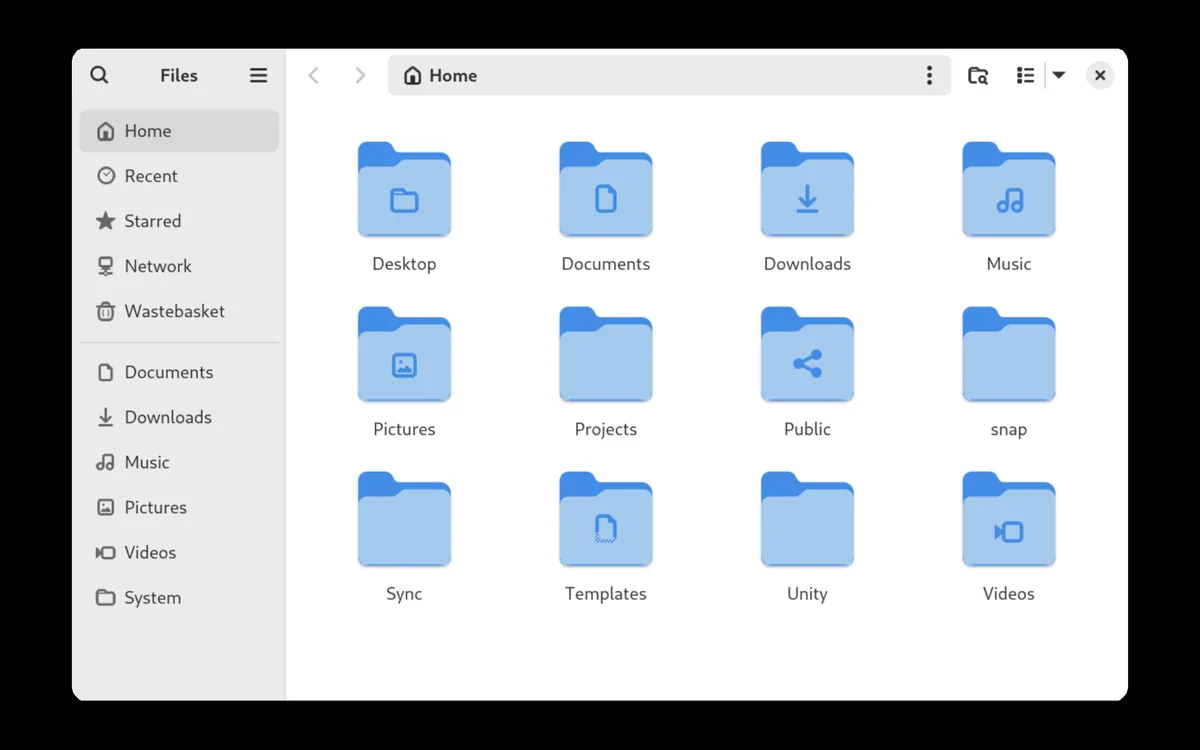
For example, an app sandbox can access many places in your home directory without extra permission, such as Documents, Music and Videos. The XDG-based paths cover common filenames and default directories for many types of user files, like documents, images, and music. Apps under Flatpak's restrictions still have access to some standard user directories, and that simplifies many workflows around files.
Why the second drive fails
When an app in a Flatpak sandbox tries to access files in a location that hasn't been granted a permission, Flatpak interprets that behavior as a "permission denied" error. This usually shows up when an app can't open a file on a different storage volume, like an external drive or secondary hard drive.
This happens because the location on the second drive is outside what the app has been allowed to see, so it gets an error unless the owner explicitly enables that location. That lack of access can look like a failure of the file access mechanism, but it's happening due to permission restrictions on the filesystem level.
Emphasizing this common issue are the specific exceptions for how paths are handled. A path that allows access to a subdirectory also allows access to the subdirectory's parents, so MyFiles/Example would allow MyFiles. But the home directory path ~/MyFiles/Example would grant the home directory permissions and all its subsystems, including ~/.var/app. Likewise, if a path like /mnt/Files grants access to a partition named "Files" on the /mnt mount, the subdirectories, like /mnt/Files/MyData, are also accessible. However, /mnt/Files will not grant access to /mnt/Backup/Files.
The narrow fix
To allow access to a storage location, directory, or specific file, you can grant minimal access only to that exact location, not the entire home directory or host system.
You can enable directory access for a Flatpak app using flatpak override --user --filesystem=../path/to/dir app_name. For an absolute path, replace /path/to/subdirectory with the full path, like /mnt/Files for an external drive.
This command allows the sandbox to access only the location named. Remember, if you just provide the path's parent directory, that allows access to all the subdirectories under it. To grant exactly one subdirectory or several, provide each individual path. Flatpak paths also work with home-relative paths, so flatpak override --user --filesystem=~/MyDocuments/a-folder AppName grants that single directory, not ~/MyDocuments and all its children.
What not to do
Many Flatpak installation instructions show this command, flatpak override --user --filesystem=home org.example.AppName, to allow the app sandbox to access everything in the user's entire home directory. Though that works, it grants more access than needed. Considering that even apps that need access to the user's entire home directory usually should allow only specific subdirectories, it's rarely a good idea to grant everything at once.
Further, commands like flatpak override --user --filesystem=host org.example.AppName grant access to everything in the host system, beyond just the user's home. Many applications don't need that much access, and the user should limit it to the app's minimum requirements.
Where portals stop and filesystem overrides start
An important distinction between flatpak's portals and filesystem overrides:
The File Chooser portal allows Flatpak apps to access user-selected files securely via a dialog, without the app needing filesystem access permission. When the user selects a file in a file chooser, Flatpak grants that app access to only that specific file. This behavior makes the portal approach a good choice for many file operations, even without a filesystem= override.
However, path-based overrides allow persistent access to/the file system location specified in the override, any time the app is run. Overrides set this way don't have dialog boxes or user prompts, as long as the override path is valid.
So, consider a reverse example: If you've overridden an attribute with broad filesystem access, but try to open a file through the portal, Flatpak will still use the portal dialog. This results in the user having both the dialog and file access enabled.
Conclusion
The key is to limit the specifics of files or directories accessed by a Flatpak sandbox. Do that by granting exactly the paths needed, such as an external drive mount or project directory. Grant broader home-directory or host-filesystem access if those are necessary.
File access gates and permission management are core to Flatpak's security policies, though awkward for use-cases assuming working from the entire filesystem or user space.