ThemingX Vs Y
Why GTK and Qt Applications Never Match, and How to Make Them
Which configuration file governs which family of applications, and the specific bridge packages that work
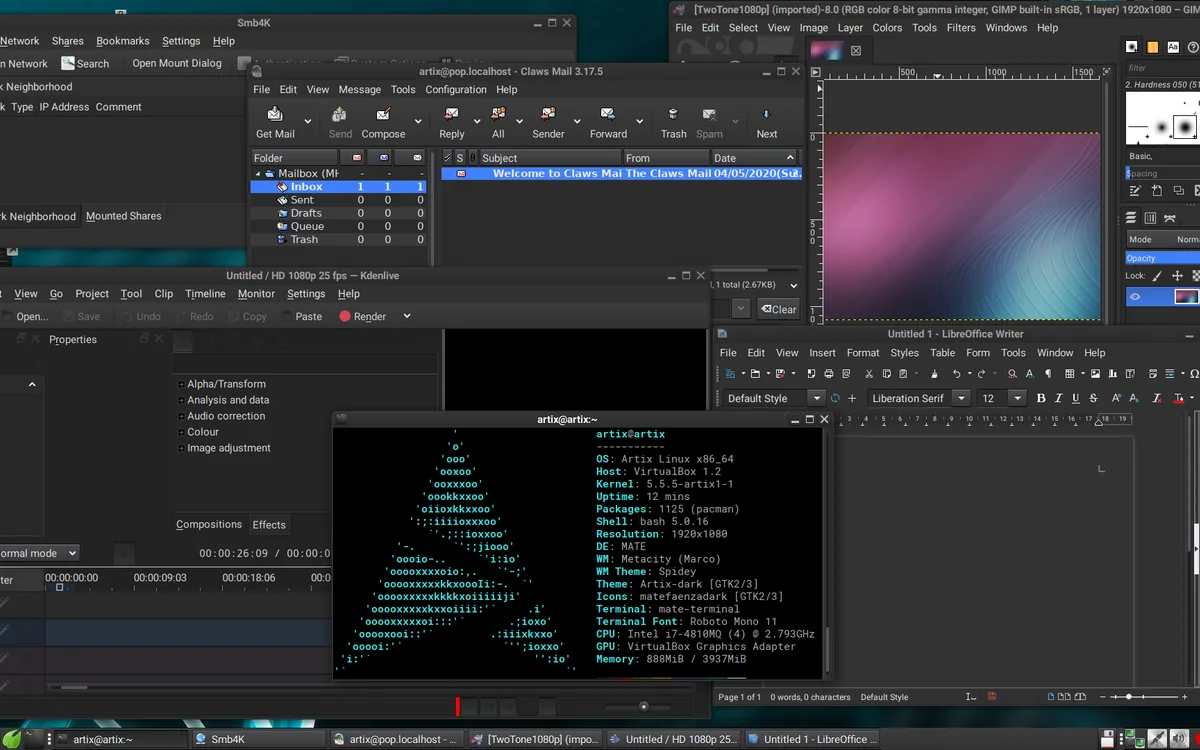
GTK and Qt applications on Linux never perfectly match by default. This is because GTK and Qt each have their own separate systems for choosing themes, platform styles, and icons. GTK themes and icons are set through a specific configuration file, while Qt applications use their own style settings and platform themes. To make an application written in one toolkit look like applications in the other, you have to use additional packages to bridge the gap.
What GTK actually obeys
Applications with GTK, the most prominent toolkit in GNOME, take their theme and icon settings from dconf under the org.gnome.desktop.interface namespace. To set the GTK theme, you would typically edit gtk-theme. To set the icon theme, edit icon-theme. These settings can be changed in GNOME Tweaks, in a text editor, or with command-line tools like dconf-editor.
However, not every setting a user makes must be obeyed: GTK 4 applications that use the libadwaita library ignore certain parts of the theme. For those applications, a patched libadwaita, a compatible theme that handles all libadwaita requirements, or the GTK_THEME environment variable can allow a chosen theme to work as expected.
What Qt actually obeys
Whereas GTK takes one setting to govern core appearance, Qt uses three related, but separate, settings.
Qt applications rely on their QT_STYLE_OVERRIDE environment variable to set the core look. In addition, they take a platform theme to follow the host desktop's visual guidelines — whether that's a GNOME desktop, a KDE desktop, or something else. This may be qt5ct, or on modern GNOME it is more likely qt6-gtk-platformtheme, whereas KDE users will typically rely on breeze.
Finally, Qt applications use their own icon themes, named by the QT_QUICK_CONTROLS_STYLE and QT_QUICK_CONTROLS_CONTRAST_STYLE environment variables under Qt 6. To choose a unified look, a user must set the style, choose a platform theme that matches, and use the same icons.
What libadwaita changed
For older applications, matching GTK and Qt applications was a simpler task: one theme could do all the work. But in recent years, GTK 4 applications have started relying on libadwaita for their core appearance. To provide the correct look and feel, libadwaita now takes its own geometry hints and styles, meaning the selected GTK theme must either explicitly support libadwaita applications, or the application must rely on libadwaita's internal settings.
The bridge packages that make one side imitate the other
To match two different toolkits, you have no choice but to accept that they each have their own separate paths to control their own appearances, and that the correct bridge package must be used. For Qt, the adwaita-qt package provides a style for the Qt era: QGtkStyle. Unfortunately, unlike GTK 2, this does not simply use the current GTK look; instead, QGtkStyle is a bespoke old-designed look that lacks all benefits of the active
To imitate modern GTK3 and the Adwaita theme, adwaita-qt officially consists of three subdivided subpackages, targeting Qt 4, 5, and 6 specifically. For Qt 5's venerable era, Kvantum offers an SVG-based style editor. Unlike the static adwaita-qt copycat, Kvantum not only allows users to edit Qt 5 app styles, it also offers several options to mimic several GTK themes including Adapta, Arc, Ambiance, Libadwaita, and Materia.
Why busybodies say GNOME and KDE are different
GNOME and KDE are so different, their design philosophies diverge on every level. In GNOME, a single theme name is expected to change the look of the entire system including GTK and Qt applications — whereas on KDE, each family follows its own path. On GNOME, a simple command in Tweaks might switch this out; on KDE, this setting is managed in System Settings under Per-application Styles and GTK applications.
This difference is reflected in the command-line too: to set the GTK theme, GNOME users rely on dconf commands in org.gnome.desktop.interface, whereas KDE users can run kde-gtk-config to select the icon theme under System Settings → Application Style → GTK. GTK 3 icon theme settings can be written in ~/.config/gtk-3.0/settings.ini with gtk-icon-theme-name=....
These differences are emphasized by the contrast between Debian's package (qt6-gtk-platformtheme) and Arch's offering (adwaita-qt6-git).
Why “install one theme” breaks everything: toolkit structure vs brand aesthetics
To say a single theme name will define the entire look of a desktop misses the mark for two reasons. First, GTK and Qt applications do not share the same setting files and convention agreements, so a package that works for one will simply not read the same settings on the other. Second, changing the "theme," or style, is only one part of the puzzle. Consistent look and feel also requires the right platform theme and icon look.
A unified look is a careful matching of icon sets, style names, and platform theme selectors.
Sources
- ArchWiki — wiki.archlinux.org