Linux DesktopNorm/Table
Fractional Scaling on Linux: What Is Sharp, What Still Blurs, and Why
A per-toolkit list of what is native, what is scaled, and the environment variables that change it
On this page
When you enable 125% or 150% fractional scaling on Linux, text often looks soft or blurry. Understandably frustrating. The key is that fractional scaling on Linux is still a work in progress: some applications render crisply, while others are softened by bitmap interpolation. Let's drill down into the practical fixes for the commonest culprits.
Native rendering vs stretched rendering
The sharpest results come in Wayland-native applications. On GNOME, scaling Firefox to 150% using the display settings, while retaining the default Wayland compositor, keeps text legible.
The others run XWayland as their default.
On Wayland, Firefox and Chromium scale fractionally with no visible distortion, while X11/xWayland apps appear blurry. On Linux, text rendering on fractional scales is a known challenge.
Wayland was designed with fractional scaling in mind, but app support is still fragmented. Some common contributors have native Wayland support: Gtk, Qt
GTK: What it supports and what it doesn't
GTK supports fractional scaling only for fonts. GTK applications can be scaled with GDK_SCALE for integer scaling and GDK_DPI_SCALE for fractional scaling. But ArchWiki reports that you need to set GDK_DPI_SCALE to 0.5 to un-scale some fonts that would otherwise be scaled twice.
Applications using the old-fashioned X11 UI toolkit are rendered as bitmaps by the compositor, then scaled by the size factor. So they end up looking blurry.
The scaling for fonts is more advanced, but the upscales are done by bitmap interpolation. So fonts look SEMISOFT.
The blunt tool here is GDK_DPI_SCALE, described as a workaround for non-HiDPI-aware applications. It lets you enlarge system fonts and then reduce GTK text size. The ArchWiki suggests setting GDK_DPI_SCALE to 0.5 to un-scale some fonts that would otherwise be scaled twice. [ ]
But that is very blunt and it cannot scale non-text elements.
Browsers and Electron Apps
On Wayland in GNOME, Firefox scales smoothly, while Chromium-based browsers such as Brave and Edge are blurry. Chromium-based browsers like Brave can be blurry as well.
For Firefox, setting the environment variable MOZ_ENABLE_WAYLAND=1 before launching the application avoids the blurring on Wayland.
For Chromium-based and Electron-based apps, setting ELECTRON_OZONE_PLATFORM_HINT=auto or navigating to chrome://flags/#ozone-platform-hint and choosing Wayland instead of X11 can leave you with blurred text, especially at 125% and 150% fractional scaling.
Chromium's ELECTRON_OZONE_PLATFORM_HINT=auto and Firefox's MOZ_ENABLE_WAYLAND=1 overrides the Wayland or XWayland decision.
Why text gets soft
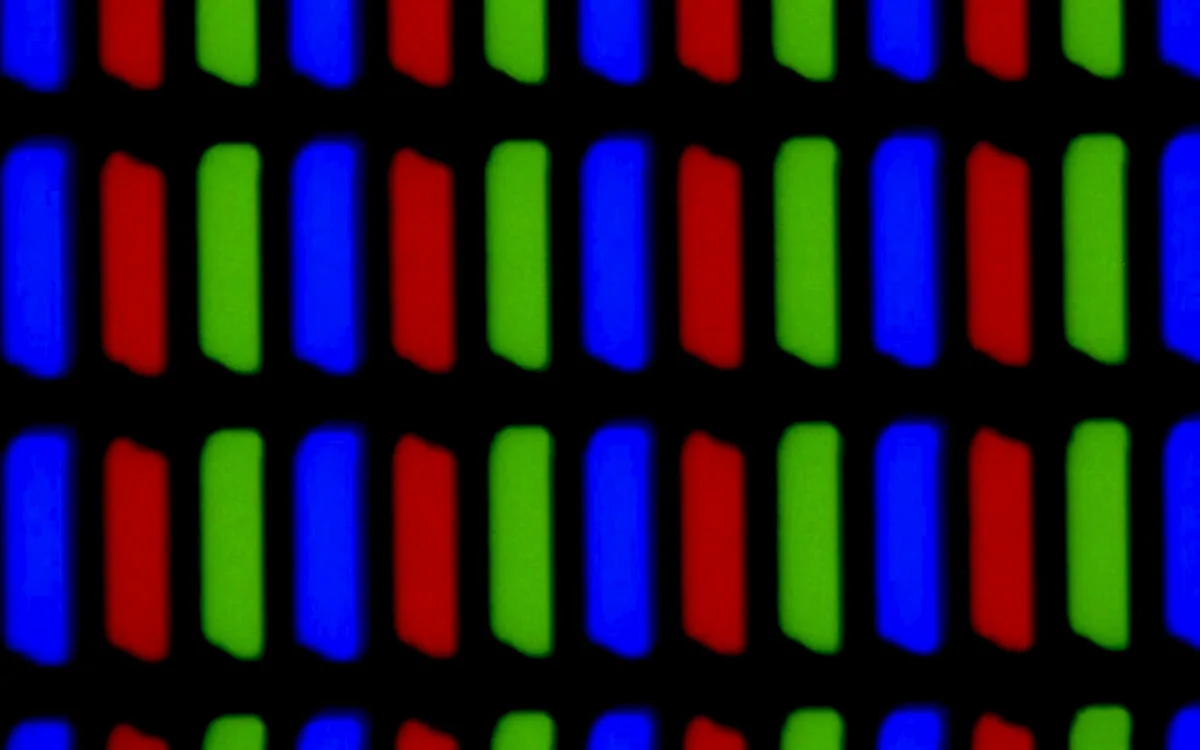
When an X application runs under Wayland, it gets rendered on an X server that runs as a Wayland client. Then the Wayland compositor renders its output as a texture, and scales the texture.
On fractional scales, texture scaling softens the edges of glyphs. As text gets larger, the blur gets more noticeable.
What actually fixes the blur
For the Wayland-native applications, and those GTK apps using the fractional-scaling environment variables, those workarounds fix the issue. But for X-based apps, those bitmap-based rendering paths are hard to bypass.
App-specific fixes for pixel-stretching could be implemented in the software layer. Most application developers will fix this by adding checkboxes or toggle buttons to change scaling behavior on fractional scaling settings. This is done in software and therefore introduces extra intensive CPU/GPU usage and sometimes ends up with some rendering artifacts.
The resilient but imprecise workaround is to turn off fractional scaling and use GTK's GDK_SCALE. This makes the system look blurry, but prevents text rendering artifacts. The safe workaround is to turn off fractional scaling.
Top comments report other workarounds for common offenders. For Karamba, Kvantum Manager, toggle the fractional scaling option or by setting QT_SCALE_FACTOR=2.5 for 150%, then recompiling the themes.
For Chromium-based browsers, setting ELECTRON_OZONE_PLATFORM_HINT=auto may help.
For JetBrains apps on Wayland, some workarounds may improve scaling. For JetBrains products on Linux, provided the desired EAP releases are downloaded and installed,
Conclusion
There is no universal fix for blurry text on Linux under fractional scaling. Your experience depends on your choice of desktop and your willingness to experiment with environment variables. That will improve, but there will always be a choice between a native Wayland path with crisp rendering, and an X11/XWayland fallback with blurring but broad compatibility.
For the native Wayland apps that support it, setting environment variables to improve the rendering is the current solution. Even then, some apps like the Chromium/browser apps don't support fractional scaling on Wayland yet, even though Wayland has been in development for years.